
Colory - Color by Number
SocByArt & Design
3.83.00 Reviews
- Version
- vsb_1.2.1_7.7.8_30
- Installs
- 500.00K
- Age Rating
- Everyone
Screenshots
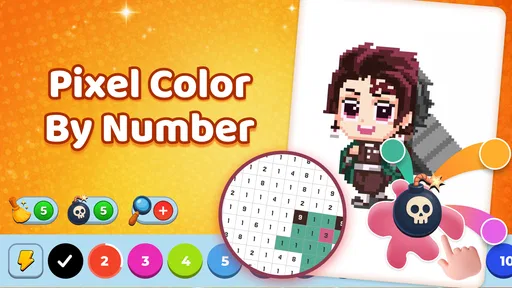
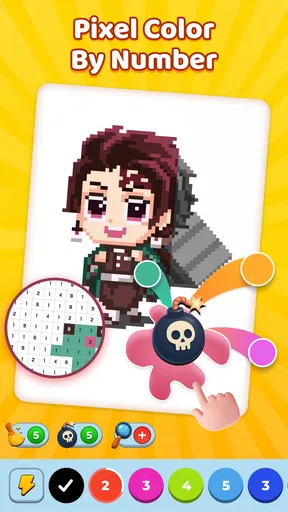
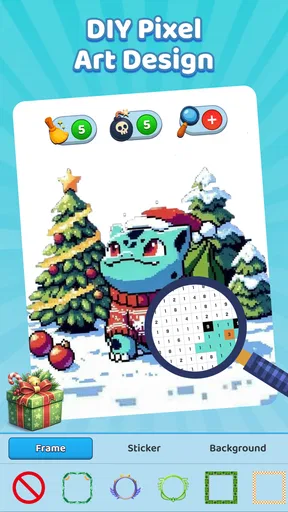
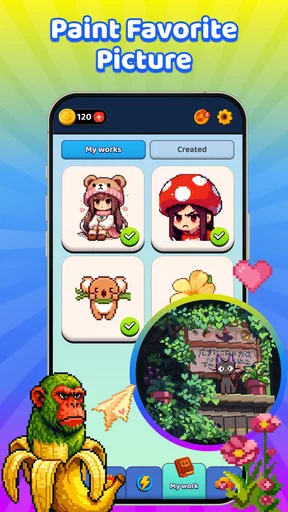

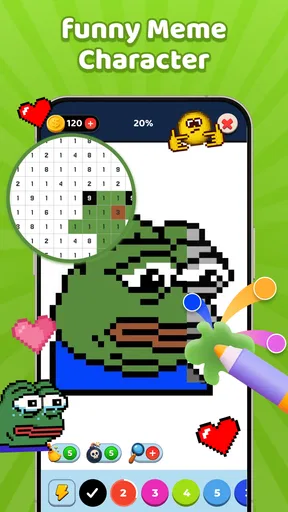


Our Review of Colory - Color by Number
 Analysis by Appyee
When I first opened Colory - Color by Number, I understood its appeal almost immediately: it turns the familiar paint-by-number idea into a small, low-pressure art session. Instead of asking me to draw from scratch, it gives me a numbered image to complete by tapping matching areas. That makes it approachable for someone who wants to create something colorful without learning layers, brushes, perspective, or complicated editing tools.
This is an Art & Design app from SocBy, and its central attraction is the option to work with pixel-style pictures as well as imported photos. The basic promise is simple, but the useful part is the change in effort: a personal photo can become a guided coloring project rather than just another image in my gallery. I found that especially suitable for short breaks, relaxing before bed, or giving a child an activity that feels creative while remaining easy to understand.
The app is free to install, although it includes in-app purchases ranging from less than a dollar to amounts approaching thirty dollars per item. That makes it worth approaching as a free starting point rather than assuming every part of the experience is unlimited. It is rated for Everyone, works on Android seven and later, and the current version is vsb_1.2.1_7.7.8_30. Its average rating sits at 3.8 from around 332 ratings, while its install count has passed 500K, so it has attracted a substantial audience without being universally loved.
What Colory feels like when you begin
The first thing to understand is that this is not a general drawing studio. I would not open it expecting the control of a professional illustration app, a full photo editor, or a blank canvas where every mark is mine. The experience is more guided. I choose an image, follow the visible number or color cue, and gradually watch the picture become complete.
That guided structure is the reason I think beginners will settle into it quickly. There is no need to decide which brush size to use or how to mix a particular shade. The app gives the task a clear next move, which removes the hesitation that often stops people from trying digital art. It also creates a satisfying rhythm: find the active number, tap the matching spaces, and repeat until the image starts looking finished.
The pixel-art style changes the mood compared with realistic coloring apps. Small blocks and defined sections make the result feel deliberately digital, almost like a miniature mosaic. This can be a strength when I want a graphic-looking image with clear edges. It is less suitable when I want soft watercolor transitions, painterly texture, or precise retouching of a portrait.
Importing a photo is the feature that gives the app more personal value than a fixed coloring gallery. A picture of a pet, a favorite view, or a family moment can become a project instead of remaining a passive snapshot. I would still choose the source image carefully. A photo with a clear subject and strong separation between light and dark areas is likely to translate more comfortably than a busy scene with many overlapping details.
Starting without making the first session harder
For a first attempt, I recommend resisting the urge to begin with the most detailed image available. The point of the opening session is to learn how the numbered areas behave and how much tapping feels comfortable on your phone. A simpler picture gives me a faster sense of progress and makes it easier to notice whether the app’s style suits me.
After launching it, I would browse briefly, select an uncomplicated design, and begin with the color or number that appears easiest to identify. I would not spend several minutes trying to plan the perfect order. The app’s appeal comes from the small decisions being handled for me, so overplanning works against the relaxed quality of the activity.
When importing a photo, I would start with an image that has one obvious subject. A close-up pet photo, a simple flower, or a building against a clean sky is a better first experiment than a crowded group picture. This is one of the most practical lessons I took from using the concept: the quality of the starting image affects the coloring experience more than the original camera quality does.
It is also helpful to treat the first finished picture as a test, not a final portfolio piece. If the result looks too busy, that does not necessarily mean the app failed. The source may simply contain too many small regions for comfortable tapping. Trying a cleaner image is a more useful next step than immediately deciding that photo import is not worthwhile.
The first meaningful success
My definition of success here is not artistic perfection. It is completing enough of one image to recognize the transformation. Once several blocks are filled, the picture starts to move from a collection of numbered spaces toward a coherent design. That moment is important for new users because it explains why the repetitive tapping can be enjoyable.
I found it easier to stay oriented by focusing on one color at a time rather than jumping randomly around the picture. This approach reduces visual searching and gives each pass a clear purpose. It is particularly useful on smaller screens, where tiny sections can make the image feel crowded. I also prefer finishing the larger, easy-to-see regions before chasing isolated specks, because the overall picture becomes readable sooner.
A practical workflow is to complete a short session, pause, and look at the image as a whole. If I keep zooming into tiny spaces without checking the larger composition, the task can begin to feel like maintenance. Stepping back restores the sense that I am creating an image rather than merely clearing a checklist.
For a child, I would use the app alongside them during the first picture. The interface idea is simple, but small numbered areas and repeated tapping may still require patience. For an adult who wants quiet time, the same structure can work independently. The important distinction is that this is guided creativity: it offers a finished visual destination, while the user supplies the attention and persistence needed to reach it.
Where beginners may become confused
The biggest possible misunderstanding is expecting every imported photo to become equally attractive pixel art. A conversion process has to simplify the original image, and simplification can remove subtle facial expressions, fine textures, or small objects. I would judge the result as an interpretation, not as a faithful replacement for the original photograph.
Another point of friction is the difference between seeing a color and locating every area assigned to it. On a detailed image, the active sections can be easy to miss, especially when they are tiny or scattered across a similar-looking background. My solution is to work methodically: scan the main subject first, then the edges, and finally the less important background pieces. This is slower than tapping randomly, but it prevents the feeling that the app is hiding unfinished areas.
It is also worth remembering that “color by number” does not mean I am choosing every shade myself. The creative decision is mainly in selecting the image and completing its defined palette. Someone who wants to invent colors freely, sketch over a photograph, or adjust individual tones will probably feel restricted. A conventional drawing app is the better choice for those goals.
In-app purchases are another reason to pay attention during the first few sessions. The download is free, but optional purchases can reach from $0.99 to $29.99 per item. I would begin with the free experience and only consider spending after deciding that the available workflow genuinely fits my habits. This is especially sensible for a family device, where a child may be tempted by additional content or tools without understanding the cost.
How it compares with familiar alternatives
Compared with a standard coloring-book app, Colory’s photo-import angle gives it a more personal starting point. A traditional coloring app usually asks me to choose from illustrations prepared by the developer. Here, the possibility of turning my own images into pixel-style projects makes the activity feel less interchangeable. The trade-off is that the outcome depends more heavily on the source photo.
Compared with a full drawing app, it is much easier to start but much less flexible. I do not need to learn a brush system or build an image from an empty canvas, which is ideal for a first-time user. In return, I give up direct control over linework, shading, and composition. I would choose Colory for guided relaxation and choose a drawing app when the goal is to practice illustration or make a deliberately original composition.
Compared with editing a photo with filters, this app is slower but more participatory. A filter changes an image in seconds; coloring by number asks me to spend time with it. That difference matters. If I only want a quick stylized picture to share, an editor is more efficient. If I want a screen activity that keeps my hands and attention occupied, Colory has the stronger reason to exist.
The pixel approach also separates it from soft-focus photo effects. Its visual identity comes from blocks, boundaries, and a limited coloring process. Users who enjoy retro graphics, mosaic-like images, or clearly segmented artwork are more likely to appreciate that look than users seeking natural photographic detail.
Useful ways to make the app work better for you
My first tip is to choose images for structure rather than sentiment alone. A meaningful photo can still be a poor coloring source if the subject blends into the background. Before importing, I would look for a strong outline, recognizable shapes, and enough contrast to survive simplification. This small selection habit can save more frustration than repeatedly changing the coloring order.
My second tip is to use the app as a series of short projects instead of demanding one long sitting. Detailed pixel pictures can become tiring when every remaining area is small. Completing a recognizable portion and returning later keeps the activity relaxing. It also makes the app easier to fit into a commute, a waiting room, or a few quiet minutes between tasks.
My third tip is to reserve personal photos for after learning the basic rhythm. A ready-made image lets me evaluate the tapping, numbering, and visual feedback without also wondering whether my own photo converted well. Once I know how the process feels, importing becomes a creative experiment rather than a confusing first test.
A fourth useful trade-off is deciding whether completion matters more than expression. If I enjoy finishing collections and watching empty areas disappear, the numbered structure is likely to remain motivating. If I lose interest when a picture dictates the palette and placement, I should move to a freer art tool instead of expecting this app to become something it is not.
Who should try it and who should skip it
I would recommend it to first-time digital artists, people who enjoy pixel aesthetics, and anyone looking for a calm activity with a clear sequence of actions. It may also suit families who want an Everyone-rated creative app, provided an adult keeps an eye on optional purchases and helps younger users with the small details.
It is a good match for someone who says, “I want to make something, but I do not know how to draw.” The numbered structure lowers the entry barrier without making the result feel like a single automatic filter. There is still a sense of participation because the final image appears through the user’s repeated choices and attention.
I would skip it if my main goal were professional photo editing, unrestricted illustration, advanced color theory practice, or quick social-media graphics. I would also be cautious if repetitive tapping is uncomfortable or if tiny sections are difficult to see on my device. The app’s simplicity is its selling point, but that same simplicity limits how much control an experienced artist receives.
What to expect after the first picture
Once the first image is complete, the best next step is not necessarily to buy anything. I would try a second project with a different kind of source: perhaps a simple landscape after a close-up subject, or a prepared pixel image after an imported photo. That comparison reveals whether I prefer the app’s built-in style or its personal-photo workflow.
I would also pay attention to what kind of satisfaction I am seeking. Some users enjoy the finished image, while others enjoy the process of gradually removing the numbered spaces. If the process itself feels calming, Colory can become a useful occasional break. If only the final image matters, the time required may feel less worthwhile than using an automatic effect.
SocBy has positioned this as a lightweight art experience rather than a professional workstation, and that is how I think it should be judged. The current release, vsb_1.2.1_7.7.8_30, is best approached by beginners who want a clear first success, not by artists searching for deep controls. Its free entry point makes trying it easy, while the optional purchase range means I would keep spending deliberate rather than automatic.
My overall impression is positive with clear boundaries. I like the way a personal image can become a hands-on pixel project, and I appreciate that the numbered workflow gives nervous beginners an immediate route into digital art. At the same time, the result depends on choosing a suitable photo, detailed pictures can demand patience, and the guided palette will not satisfy everyone. If you want a gentle, structured way to turn images into colorful pixel art, Colory is worth trying free before deciding whether it belongs in your regular creative routine.
Verdict
Strengths of Colory - Color by Number
- Simple color-by-number controls are easy for beginners to understand.
- Large artwork library offers themes for different interests.
- Helpful hints make difficult or tiny sections easier to complete.
- Completed pictures can be saved and shared with friends.
- Relaxing gameplay works well for short, casual sessions.
Limitations of Colory - Color by Number
- Some detailed images require considerable time and patience to finish.
- Hints or extra content may be limited unless you watch ads or pay.
- Small sections can be difficult to tap accurately on compact screens.
- The app may feel repetitive if you prefer more creative coloring tools.
- An internet connection may be needed for certain images or features.
Similar Picks in This Category
View All
Canva: AI Photo & Video Editor
Canva4.8

PENUP – Drawing-sharing SNS
Samsung Electronics Co., Ltd.4.5

Crafto
Kutumb App4.6

Sketchbook
Sketchbook4.1

ibis Paint X
ibis inc.4.5

Adobe Express: AI Photo, Video
Adobe4.6
Frequently Asked Questions
What is Colory - Color by Number?
Colory - Color by Number is a relaxing digital coloring app built around numbered illustrations. You select an image, match each number with its corresponding color, and fill the sections by tapping or dragging across the artwork. The app is designed for casual entertainment and stress relief, offering a simple experience that does not require drawing skills or previous coloring experience.
How does the coloring system work in Colory - Color by Number?
After choosing an illustration, the screen displays numbered areas and a palette of matching colors. Selecting a color highlights the sections where it belongs, making it easier to complete the picture accurately. You can zoom in when working on small details and move around the canvas as needed. Completed images gradually reveal a finished, colorful design.
Is Colory - Color by Number free to download and use?
Colory - Color by Number can generally be downloaded at no initial cost, allowing users to try its main coloring features without paying upfront. However, availability of certain artwork, bonus content, advertisements, or additional tools may depend on the app’s current version and monetization model. Check the store listing and in-app purchase information before downloading.
Does Colory - Color by Number require an internet connection?
The basic coloring experience may work without a constant internet connection, especially for illustrations that have already been loaded on the device. Nevertheless, an internet connection can be required for downloading new pictures, synchronizing progress, displaying advertisements, or accessing online content. If you plan to use the app offline, open it online first and confirm which features remain available.
Is Colory - Color by Number suitable for children and adults?
The app is suitable for many casual users because its numbered coloring mechanics are easy to understand and do not demand artistic ability. Adults may enjoy it as a quiet relaxation activity, while older children can use it for creative entertainment. Parents should still review the app’s age rating, advertising, privacy details, and any purchase options before allowing younger children to use it.
